Popular on TelAve
- Still Using Ice? FrostSkin Reinvents Hydration
- OneVizion Announces Next Phase of Growth as Brad Kitchens Joins Board of Directors
- Ice Melts. Infrastructure Fails. What Happens to Clean Water?
- Finland's €1.3 Billion Digital Gambling Market Faces Regulatory Tug-of-War as Player Protection Debate Intensifies
- Cold. Clean. Anywhere. Meet FrostSkin
- Amicly Launches as a Safety-First Social App Designed to Help People Build Real, Meaningful Friendships
- François Arnaud, star of Heated Rivalry, is the real-life inspiration behind Christopher Stoddard's novel At Night Only
- The Legal AI Showdown: Westlaw, Lexis, ChatGPT… or EvenSteven?
- Purple Heart Recipient Honored by Hall of Fame Son In Viral Tribute Sparking National Conversation on Service Fatherhood, Healing and Legacy
- Actor, Spokesperson Rio Rocket Featured in "Switch to AT&T" Campaign Showing How Customers Can BYOD and Keep Their Number
Similar on TelAve
- K2 Integrity Enhances Technology Capabilities Through Acquisition of Leviathan Security Group
- Energywise Solutions and Pickleball Pros Partner to Bring More Energy and Visibility to Pickleball Clubs
- Buildout Launches CRM, Completing the Industry's First AI-Powered End-to-End Deal Engine for CRE
- The Franchise King® Releases Free Guide for Nervous Buyers
- NRx Pharmaceuticals Launches Breakthrough One-Day Treatment Clinic in Florida as FDA Pathway and Clinical Data Strengthen Growth Outlook; $NRXP
- Revenue Optics Launches Talent Infrastructure Platform for SaaS Revenue Hiring and Appoints Sabz Kaur to Lead Growth
- Building a Multi-Domain Autonomous Systems Platform at the Intersection of AI, Defense and Infrastructure: VisionWave Holdings (N A S D A Q: VWAV)
- Strong Clinical Results for Breakthrough Liver Diagnostic Platform; ENDRA Life Sciences (N A S D A Q: NDRA) $NDRA
- 46th International Symposium On Forecasting – Dates, Venue And Speakers Announced
- Phoenix Rebellion Therapy Celebrates 10 Years Helping Utahns Overcome Trauma as Utah Faces Nation's 2nd-Highest Rate of Mental Health Challenges
How to use a QR Code scanner from Image: Step-by-Step Guide
TelAve News/10886023
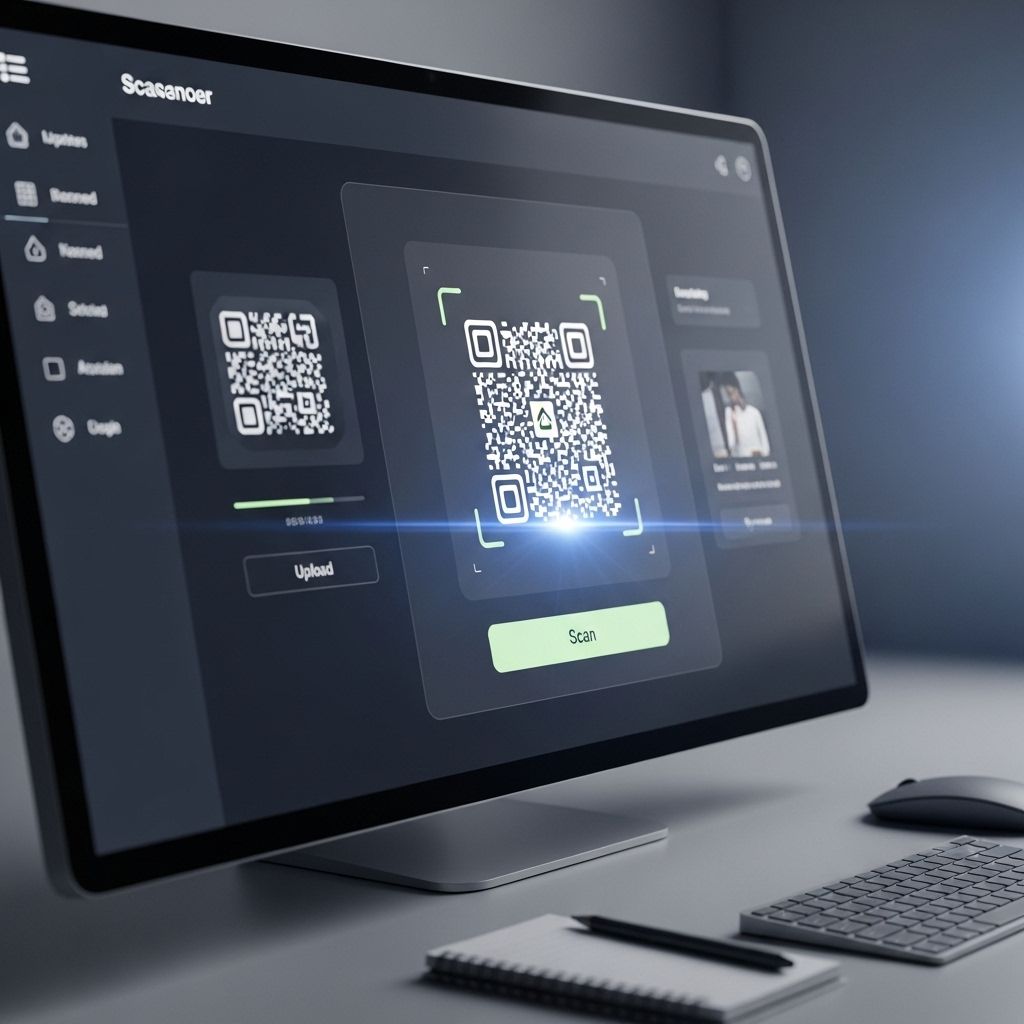
Stuck with a QR code in your gallery? Learn how to use a QR code scanner from image files on Android, iPhone, and PC quickly and safely.
DENVER - TelAve -- How to Scan a QR Code from an Image: A Step-by-Step Guide
In today's digital world, QR codes are everywhere. We see them on restaurant menus, payment terminals, and marketing flyers. Usually, you scan them with your camera. But what happens when the QR code is sent to you digitally? Perhaps it is a screenshot, an email attachment, or a social media post. You cannot point your camera at your own phone screen. This guide will teach you exactly how to use a QR code scanner from Image files directly on your device. We will cover Android, iOS, and Desktop methods to ensure you can access information quickly and easily.
To solve this problem, you need to use software that uses Optical Character Recognition (OCR) or specific QR recognition algorithms. You do not need a second phone to scan the first phone. Modern operating systems have built-in tools that make this process seamless. Whether you are using the latest iPhone or a Windows PC.
More on TelAve News
Desktop Solutions: Windows and Mac
Scanning a QR code on a desktop computer can feel more complicated because we are used to mobile-first solutions. However, there are efficient ways to perform a QR code reader from Image operation on your PC or Mac. You do not need to pull out your phone to scan your computer screen. Here are the best strategies for desktop users.
More on TelAve News
A QR code is a matrix of black and white squares. If the contrast is poor, or the image is blurry, the software cannot interpret the data. Here is how to ensure a successful scan every time.
In today's digital world, QR codes are everywhere. We see them on restaurant menus, payment terminals, and marketing flyers. Usually, you scan them with your camera. But what happens when the QR code is sent to you digitally? Perhaps it is a screenshot, an email attachment, or a social media post. You cannot point your camera at your own phone screen. This guide will teach you exactly how to use a QR code scanner from Image files directly on your device. We will cover Android, iOS, and Desktop methods to ensure you can access information quickly and easily.
To solve this problem, you need to use software that uses Optical Character Recognition (OCR) or specific QR recognition algorithms. You do not need a second phone to scan the first phone. Modern operating systems have built-in tools that make this process seamless. Whether you are using the latest iPhone or a Windows PC.
More on TelAve News
- Buildout Launches CRM, Completing the Industry's First AI-Powered End-to-End Deal Engine for CRE
- Energywise Solutions and Pickleball Pros Partner to Bring More Energy and Visibility to Pickleball Clubs
- The Franchise King® Releases Free Guide for Nervous Buyers
- Kanguro Insurance Taps Paylode to Launch Best-in-Class Pet and Renters Insurance Rewards Experience
- CCHR: CIA Mind-Control Files Raise Urgent Questions as Millions Take Psychotropic Drugs
Desktop Solutions: Windows and Mac
Scanning a QR code on a desktop computer can feel more complicated because we are used to mobile-first solutions. However, there are efficient ways to perform a QR code reader from Image operation on your PC or Mac. You do not need to pull out your phone to scan your computer screen. Here are the best strategies for desktop users.
- Windows Camera App If you have a webcam, you can hold a printed code or a phone screen up to it. Search for "Camera" in the Start menu. However, for saved images, this is not efficient.
- CodeTwo QR Code Desktop Reader This is a popular free software for Windows. Once installed, it lets you scan QR codes directly from images saved on your hard drive or even snag them from a specific part of your screen using a snipping tool.
- Mac Native Features On macOS, you do not need extra tools if you use the "Preview" app. However, often the fastest way on a Mac is to use an app like "QR Journal" available on the App Store.
- Web-Based Scanners If you do not want to install software, use a trusted online scanner. Websites like "WebQR" allow you to upload an image file (JPG or PNG), and they will display the content instantly.
More on TelAve News
- NRx Pharmaceuticals Launches Breakthrough One-Day Treatment Clinic in Florida as FDA Pathway and Clinical Data Strengthen Growth Outlook; $NRXP
- Revenue Optics Launches Talent Infrastructure Platform for SaaS Revenue Hiring and Appoints Sabz Kaur to Lead Growth
- Building a Multi-Domain Autonomous Systems Platform at the Intersection of AI, Defense and Infrastructure: VisionWave Holdings (N A S D A Q: VWAV)
- Bent Danholm Named "Top Luxury Real Estate Leader" in Modern Luxury Miami
- Author Ken Mora to Celebrate New Caravaggio Book Debut with Special Event at Palazzo Venezia Naples
A QR code is a matrix of black and white squares. If the contrast is poor, or the image is blurry, the software cannot interpret the data. Here is how to ensure a successful scan every time.
- Resolution Ensure the screenshot or image is high resolution. If you zoom in and the squares look pixelated, the scanner will fail. Try to get the original file rather than a compressed thumbnail.
- Lighting and Contrast If you took a photo of a screen, glare can obscure the data points. Ensure the lighting is even. For digital files, ensure the code is black on white or has high contrast.
- File Formats Stick to standard formats like JPG or PNG. Some scanners struggle with GIF or WebP formats. If you have a weird format, take a screenshot of it to convert it to PNG automatically.
Source: 2scan
0 Comments
Latest on TelAve News
- Claude Riveloux Review 2026: How the $10B Fund Manager Dispels 'Scam' Rumors Through Education
- Pure Energy Electrical Services, LLC Announces Strong Start to 2026, Reinforcing Customer-First Electrical Service Across Northeast Florida
- Danholm Collection Launches Boutique Luxury Real Estate Brokerage in Central Florida
- Sellvia Market Expands Curated Store Portfolio for Dropshipping Sellers
- Food Journal Magazine Raises the Standard for Restaurant Reviews in Los Angeles
- Lunch24You Inc. Aligns Platform Development With Expanding School Nutrition Technology Markets
- Williamsville Spa Expands Team to Meet Growing Demand for Professional Facials
- Pregis Expands Wind Energy Use, Advancing Progress Toward Net Zero by 2040
- Dr. Sheel Desai Solomon and Preston Dermatology Continue Awards Streak with Top Honors in 2026 Maggy Awards
- Jack and Sage Acquires Sustainable Apparel Brand Kastlfel, Expanding Premium Logo Wear Across National Parks and Ski Resorts
- Cancun International Airport Prepares for Record Travel Surge Ahead of Spring Break, Summer, and the 2026 High Season
- $167 Billion Pharma R&D Market Largely Untapped by AI Creates Major Growth Runway for KALA Bios Data-Sovereign AI Strategy: N A S D A Q: KALA
- Lighthouse Tech Awards Recognize Top HR Technology Providers for 2026
- ADB Selects OneVizion to Advance Field Execution and Infrastructure Program Management
- Memelinked Social Media powered by cryptocurrency launching July 2026
- Seven-Year-Old Toronto Dancer Julianna Selivanov Wins Nine Medals at Quebec Championship and Reaches Finals at UK Dance Festival
- Progressive Dental & The Closing Institute Partner with Zest Dental Solutions to Elevate Full-Arch Growth and Patient Outcomes
- Spring Surge in 55+ Communities: What Buyers and Sellers Need to Know in 2026
- Jason Caras Launches The Caras Institute Following Successful Exit from IT Authorities
- Serina Damesworth Hired as Century Fasteners Corp. – Director of Quality